FOI-Remote is a secure remote access tool that allows our IT team to connect to your computer and fix issues in real time. This means you don’t need to bring your device in – our technicians can troubleshoot and resolve problems while you watch, no matter where you are.
Get Remote Support Now
- For urgent remote support, during operational hours, call our support line directly: 647-483-0853
- For non-urgent support, or support outside of operational hours, submit a remote support request form:
How It Works
FOI-Remote makes remote troubleshooting simple. Here’s what to expect:
- You schedule a session with the FOI IT team or call 647-483-0853.
- We connect securely to your device using FOI-Remote.
- You share an access code, and we resolve issues in real time.
Prepare for Your Session
If you have a session schedule, ensure you have followed these steps prior to your session:
- Check if FOI-Remote is installed
- Click here to check if FOI-Remote has been installed.
- If the following pop-up appears, select Open FOI-Remote Remote Desktop, and skip to Step 3.
🚩Note: If the pop-up does not appear, please download the appropriate client in Step 2.

- Download FOI-Remote (if needed)
- Download the appropriate client:
- Windows
- macOS Apple silicon (2020 and later) | macOS Intel (pre-2020)
- Debian (.deb) | Fedora (*.rpm) | openSUSE (*.rpm)
- NOTE: Installation is required for all macOS and Linux clients. Also, although it’s not guaranteed, the Linux clients should work on their respective derivatives as well. (e.g. the Debian client should work on Ubuntu)
- Navigate to your downloads folder and double click the client to open it.
- Download the appropriate client:
- Share Your FOI-Remote ID
- Provide the ID code (9 digit number) to your technician over the phone or through your support ticket.
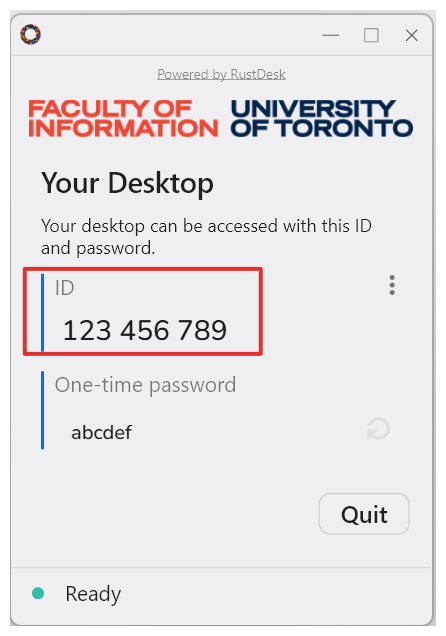
Getting Started
To start your remote support session, open FOI-Remote. For your technician to access your device, the FOI-Remote client must display a status of “Ready”. You can check the status at the bottom of the FOI-Remote window. If the status is not “Ready,” follow the guidance below to resolve the issue.

This means your device is ready for remote access. No action needed.

This means the FOI-Remote background service was installed but is not active.
How to fix:
- Select Start service.
- Grant permission in the UAC prompt.
- If the issue persists, restart your computer and try again.

This indicates a network connectivity problem.
How to fix:
- Ensure you are connected to the internet (Wi-Fi or Ethernet).
- Restart FOI-Remote after confirming your connection.
- If the problem continues, contact your technician.
Frequently Asked Questions (FAQs)
Can I use the standard RustDesk app instead of FOI-Remote?
No. FOI-Remote runs on a dedicated Faculty-owned server managed by the IT team. Downloading the public RustDesk client will not work because it cannot connect to our private infrastructure. Please use the FOI-Remote version by following the steps above.
Can I install FOI-Remote myself?
No. Installation requires administrative privileges and must be performed by IT support staff. Attempting to install it yourself will likely fail. Please follow the instructions provided above or contact IT for assistance.
Is FOI-Remote secure?
Yes. FOI-Remote uses end-to-end encryption to protect your data during the session.
With FOI-Remote, will IT have access to my computer without my consent?
No. IT support will only access your device during a scheduled session and only after you provide your ID and grant permission to your technician.
What do I need before the session?
- FOI-Remote downloaded (or installed by a technician), and running on your device.
- Your ID number ready to share with the technician.
- A stable internet connection.
What can FOI-Remote help with?
FOI-Remote can assist with a wide range of technical issues, including:
- Troubleshooting software errors and application crashes.
- Installing or updating approved software.
- Resolving some connectivity issues (Wi-Fi, VPN, network drives).
- Configuring printers and shared resources.
- Addressing security alerts or compliance requirements.
- Performing routine maintenance when patching and updates fail.